
If you’re looking for the easiest way to add Xtream Codes to Bob Player in 2026, you’ve come to the right place. This guide explains everything you need to know, from entering your IPTV credentials to solving common setup issues. Whether you’re using a Smart TV, Android TV, Fire TV Stick, or mobile device, the steps are simple and easy to follow.
Important: Bob Player is a media player only. It does not include TV channels, movies, or IPTV subscriptions. You must use your own IPTV service and only access content you are authorized to use.
What Is Bob Player?
Bob Player is a modern IPTV player that allows users to stream live TV, movies, and series using their own playlist or Xtream Codes credentials. It supports multiple playlist formats and provides an easy-to-use interface across a variety of devices.
Bob Player supports:
M3U Playlist URL
Live TV
Movies
TV Series
Electronic Program Guide (EPG)
What Are Xtream Codes?
Xtream Codes is one of the easiest ways to connect your IPTV subscription to Bob Player.
Instead of uploading a long playlist URL, you only need three pieces of information supplied by your IPTV provider:
Server URL
Username
Password
Using Xtream Codes often provides faster loading, automatic categories, and a better user experience than a standard M3U playlist.
What You Need Before You Start
Before adding Xtream Codes to Bob Player, make sure you have:
Bob Player installed on your device
An active internet connection
Your IPTV provider’s Xtream Codes credentials
Your Bob Player Device ID or MAC Address
How to Add Xtream Codes in Bob Player (Step-by-Step)
Step 1: Open Bob Player
Launch the Bob Player app on your device.
On the home screen, locate your Device ID or MAC Address. You’ll need this information to link your playlist.
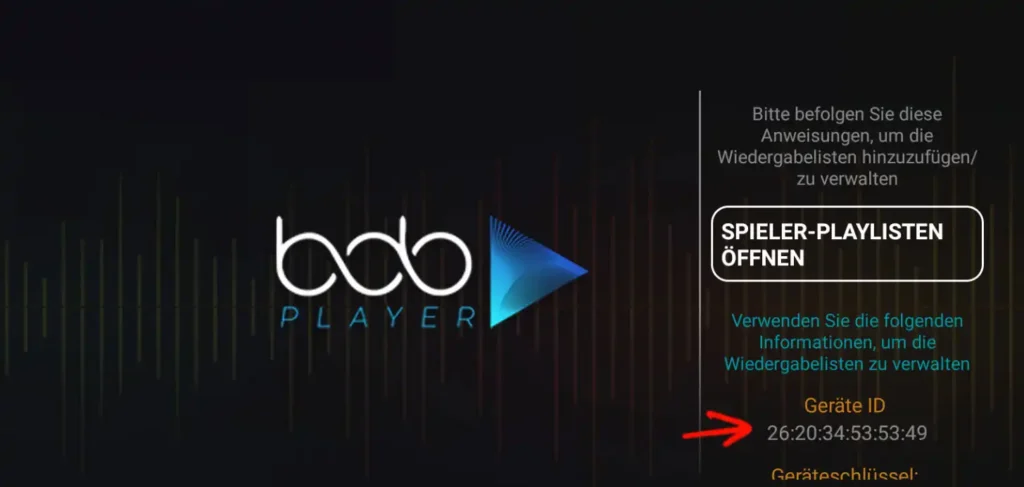
Step 2: Open the Bob Player Playlist Website
Visit the Bob Player playlist management page.
Enter your Device ID or MAC Address exactly as shown in the application.
Step 3: Enter Your Xtream Codes
Fill in the information provided by your IPTV provider:
Server URL
Username
Password
Playlist Name (optional)
Double-check that everything is entered correctly before saving.
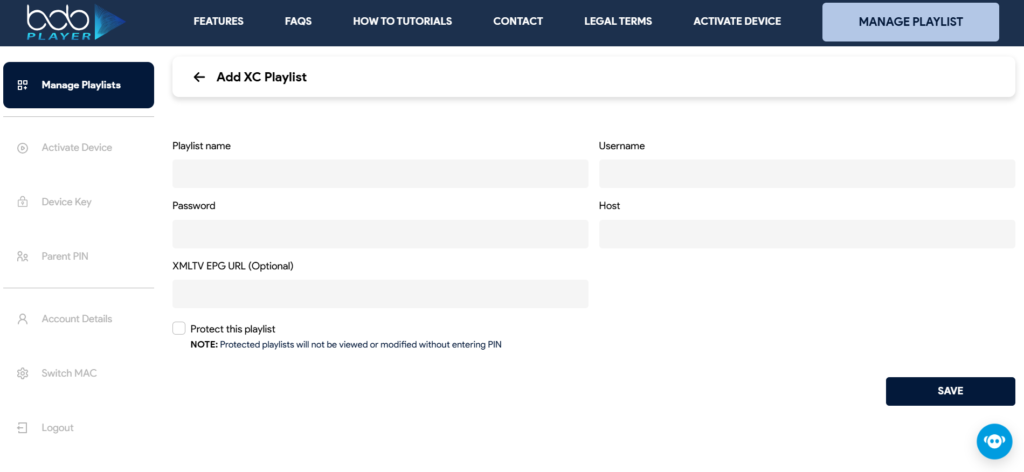
Step 4: Save the Playlist
Click the Save or Upload button.
Wait a few moments while the playlist is linked to your device.
Step 5: Restart Bob Player
Close the application completely.
Open Bob Player again.
If everything was entered correctly, your Live TV channels, movies, and series should now appear automatically.
Why Use Xtream Codes Instead of an M3U Playlist?
Many users prefer Xtream Codes because they offer several advantages:
Faster login process
Automatic movie and series categories
Better EPG support
Easier account management
Automatic playlist updates
Improved compatibility with IPTV players
Devices Supported by Bob Player
Bob Player works on many popular devices, including:
Android TV
Google TV
Fire TV Stick
Fire TV Cube
Samsung Smart TV
LG Smart TV
Android phones
Android tablets
iPhone and iPad (where supported)
Common Problems and Solutions
Playlist Not Loading
If your playlist doesn’t appear:
Check your internet connection.
Verify your Server URL.
Confirm your username and password.
Restart Bob Player after saving the playlist.
Invalid Username or Password
Most login problems happen because of typing mistakes.
Copy and paste the credentials directly from your IPTV provider whenever possible.
No Channels Showing
If the playlist loads but no channels appear:
Make sure your IPTV subscription is active.
Verify that your provider supports Xtream Codes.
Re-upload the playlist if necessary.
Buffering During Playback
For the best streaming experience:
Use a stable internet connection.
Prefer Ethernet instead of Wi-Fi when possible.
Close unnecessary background applications.
Restart your router if buffering continues.
Tips for the Best Bob Player Experience
To improve performance:
Keep Bob Player updated.
Use Xtream Codes whenever available.
Restart the application after updating playlists.
Ensure your IPTV subscription is active.
Use a high-speed internet connection.
Frequently Asked Questions
How do I add Xtream Codes to Bob Player?
Open Bob Player, copy your Device ID or MAC Address, visit the Bob Player playlist management page, enter your Xtream Codes credentials, save the playlist, and restart the application.
Does Bob Player provide IPTV channels?
No. Bob Player is only a media player and does not include any channels or subscriptions.
Can I use an M3U playlist instead?
Yes. Bob Player supports both M3U Playlist URLs and Xtream Codes API.
Why isn’t my playlist loading?
This is usually caused by incorrect login information, an inactive IPTV subscription, or an incorrect server URL.
Does Bob Player work on Fire TV Stick?
Yes. Bob Player is compatible with Fire TV Stick, Android TV, Google TV, Samsung Smart TVs, LG Smart TVs, and many Android devices.
Is Xtream Codes better than M3U?
For most users, yes. Xtream Codes usually offer a faster setup, automatic categories, better organization, and easier account management.
Related Searches
How to Add Xtream Codes in Bob Player 2026
Bob Player IPTV Setup Guide
Bob Player Playlist Tutorial
Bob Player M3U Setup
How to Activate Bob Player
Bob Player Fire TV Stick Guide
Bob Player Android TV Setup
Bob Player Smart TV Tutorial
IPTV Player Setup Guide 2026
Bob Player Login Instructions
Conclusion
Adding Xtream Codes to Bob Player in 2026 is a quick and straightforward process. Once you’ve entered your IPTV credentials correctly and restarted the application, your channels, movies, and series should be ready to watch.
For the best experience, always keep Bob Player updated, verify your IPTV credentials carefully, and use a reliable internet connection. Following the steps in this guide will help you complete the setup in just a few minutes.