bob player

How to Install Bob Player on Fire TV Stick (Step-by-Step Guide 2026)

If you are looking for a reliable and easy-to-use IPTV player for your streaming device, learning how to install Bob Player on Fire TV Stick is one of the best moves you can make in 2026. Bob Player has quickly become one of the most popular IPTV applications among cord-cutters worldwide, thanks to its clean interface, smooth playback, and broad compatibility with IPTV playlists. Whether you are a complete beginner or someone who has tried other players before, this guide walks you through every single step — from enabling sideloading on your Firestick to loading your first IPTV playlist inside the app.

By the end of this tutorial, you will have Bob Player fully installed and running on your Amazon Fire TV Stick, ready to stream live TV, movies, and series from your favorite IPTV provider. Let's get started.

Table of Contents

  1. What is Bob Player IPTV App
  2. Requirements Before Installing Bob Player on Firestick
  3. Step-by-Step Guide to Install Bob Player on Fire TV Stick
  4. How to Add IPTV Playlist to Bob Player
  5. Features of Bob Player
  6. Compatible Devices
  7. Frequently Asked Questions (FAQ)
  8. Conclusion

What is Bob Player IPTV App

Bob Player is a feature-rich IPTV media player designed to deliver a smooth and stable streaming experience on a wide range of devices. Unlike traditional media players, Bob Player is built specifically for IPTV content, meaning it handles live TV channels, video-on-demand (VOD), and series with dedicated sections and an intuitive navigation system.

The app supports both M3U playlist URLs and Xtream Codes API, which means it is compatible with virtually every IPTV subscription service available today. Its interface is optimized for remote control navigation, making it an ideal choice for Fire TV Stick users who want a TV-friendly experience without the clutter of a mouse or keyboard.

Bob Player also includes an Electronic Program Guide (EPG), catch-up TV support, and multi-screen options — features that put it on par with premium IPTV applications. If you have been using alternative IPTV players and want something more polished, Bob Player is worth the switch.

Requirements Before Installing Bob Player on Firestick

Before you begin the installation process, make sure you have everything in place. Missing any of these requirements can cause the installation to fail or the app to perform poorly.

  • Amazon Fire TV Stick — Any generation works, including Fire TV Stick 4K, 4K Max, Lite, or the standard HD model. You can grab one from the official Amazon Fire TV Stick page.
  • Stable Internet Connection — A minimum of 10 Mbps is recommended for HD streaming. For 4K content, aim for 25 Mbps or higher.
  • Downloader App — This free app from the Amazon App Store allows you to sideload APK files onto your Firestick.
  • Bob Player APK URL — Get it from the official site: bobplayer.co.com.
  • Active IPTV Subscription — Bob Player is a player, not a content provider. You need a valid IPTV subscription with either an M3U URL or Xtream Codes credentials.

Once you have all of the above ready, you can move on to the installation steps below.

Step-by-Step Guide to Install Bob Player on Fire TV Stick

This is the core of our tutorial on how to install Bob Player on Fire TV Stick. Follow each step carefully and you will have the app running in under ten minutes.

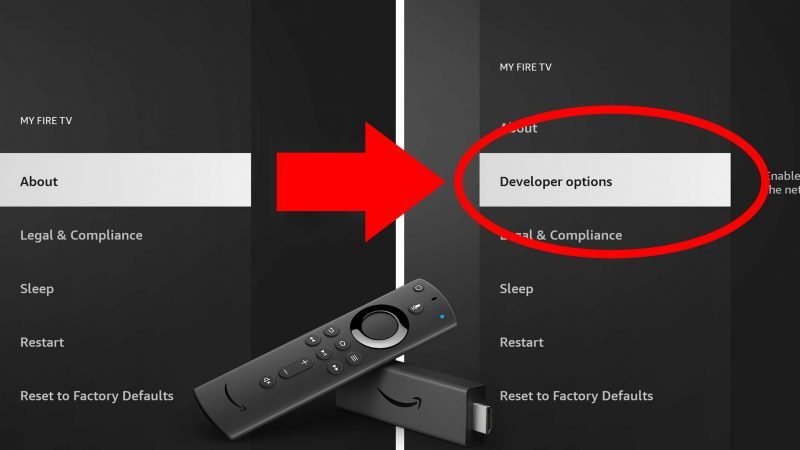
Step 1 – Enable Apps From Unknown Sources

By default, Amazon Fire TV Stick blocks the installation of apps that are not from the Amazon Appstore. You need to disable this restriction before sideloading Bob Player.

  1. From your Fire TV home screen, go to Settings.
  2. Select My Fire TV (or Device on older models).
  3. Tap Developer Options.
  4. Toggle Apps from Unknown Sources to ON.
  5. Confirm the warning prompt by selecting Turn On.
how to install bob player on fire tv stick - enable unknown sources setting

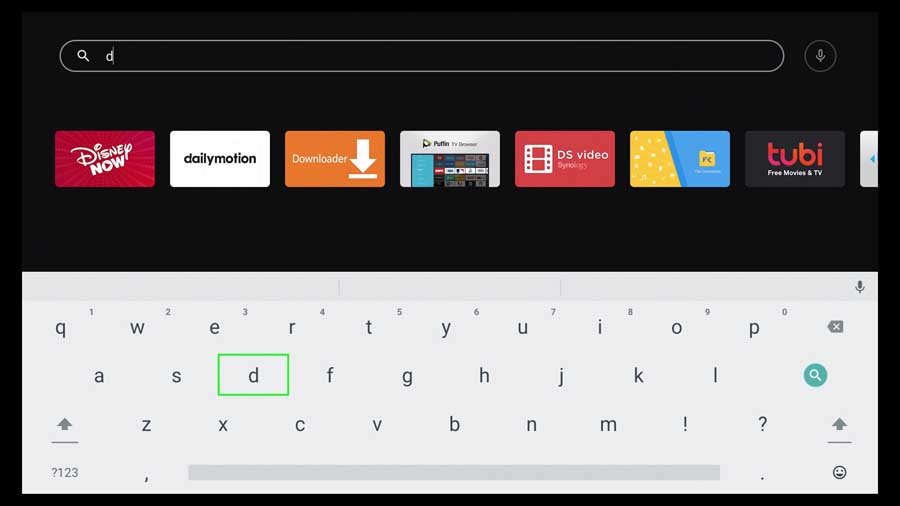
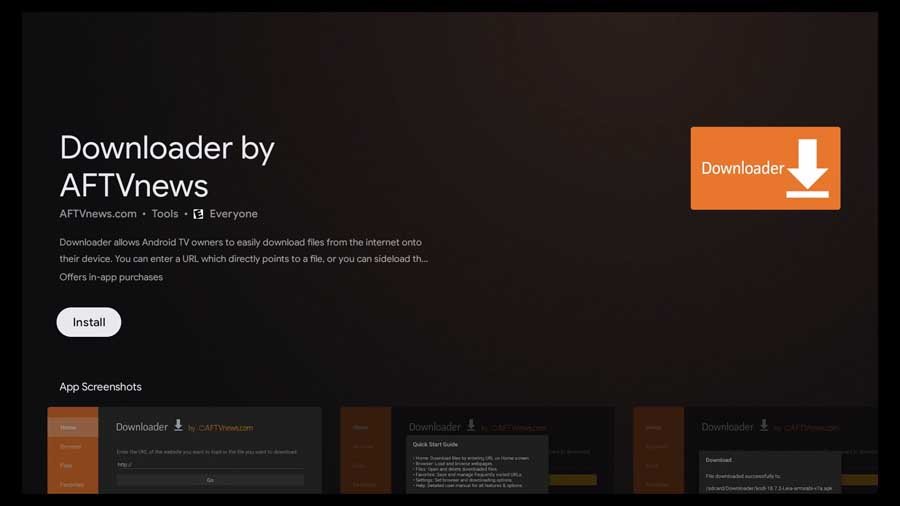
Step 2 – Install the Downloader App

The Downloader app is a free utility available directly in the Amazon Appstore. It lets you enter a URL and download any file — including APKs — directly to your Firestick.

  1. Go back to the Fire TV home screen.
  2. Use the search icon and type Downloader.
  3. Select the app by AFTVnews (orange icon).
  4. Click Download or Get and wait for it to install.
  5. Open the Downloader app once installation is complete and allow any permissions it requests.
how to install bob player on fire tv stick - enable unknown sources setting

Step 3 – Download the Bob Player APK

With the Downloader app open, you can now fetch the Bob Player APK directly from the official website

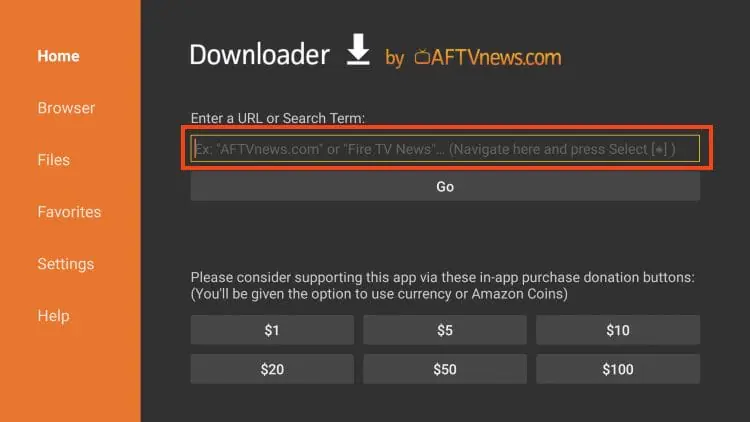
  1. Open the Downloader app.
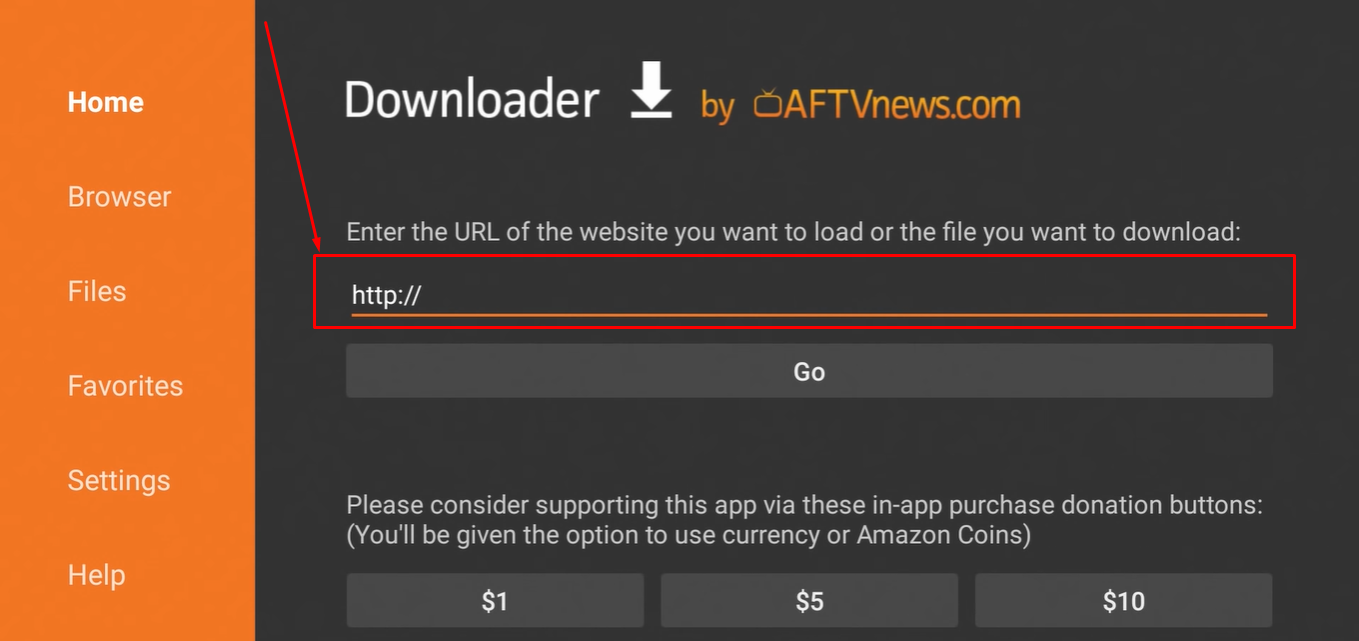
  2. In the URL field, type the Bob Player APK download URL from bobplayer.co.com.
  3. Press Go on your remote.
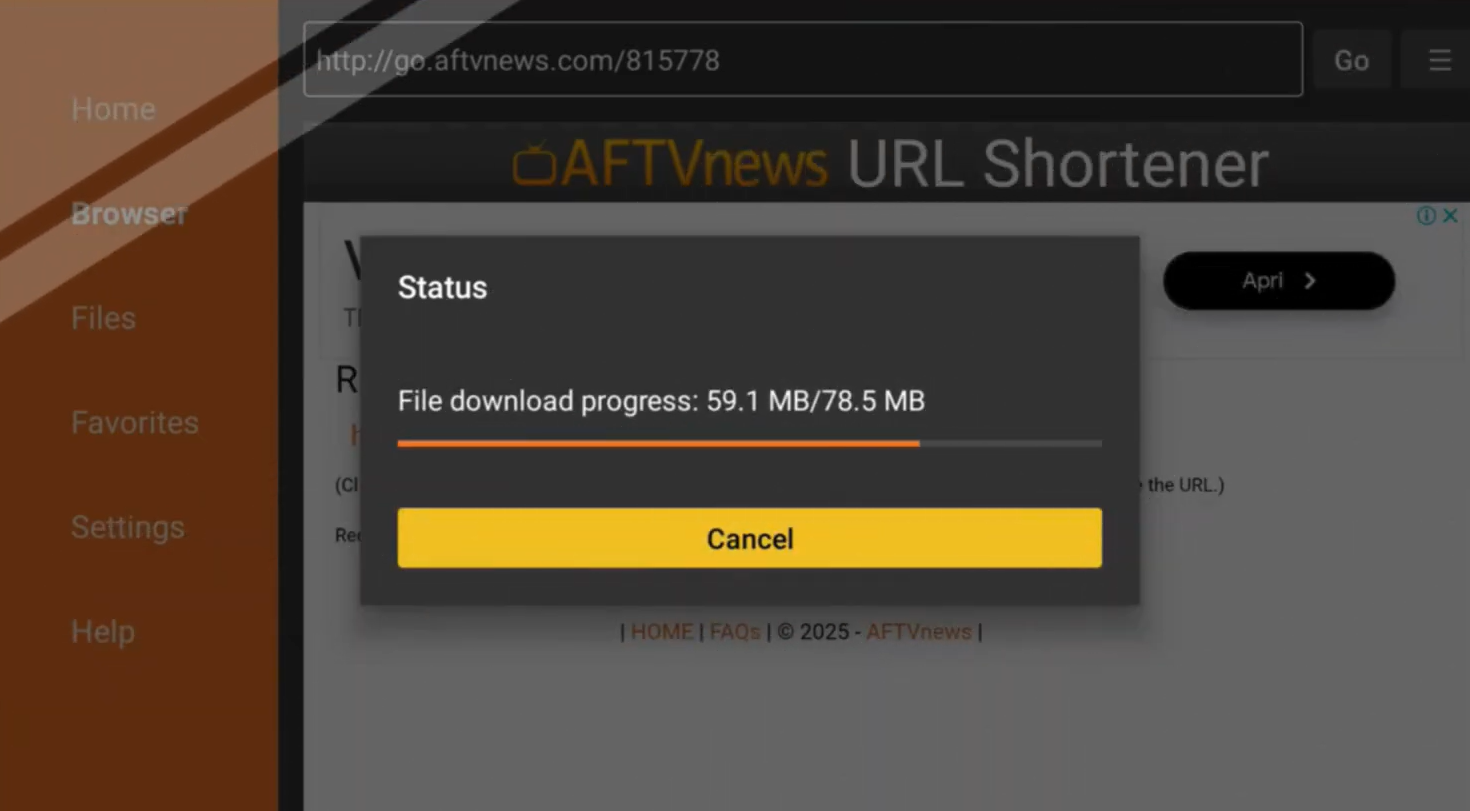
  4. The APK file will begin downloading. Wait for it to complete.

Make sure you are downloading from the official source to avoid modified or unsafe APK files.

how to install bob player on fire tv stick - enable unknown sources setting
OR VIA CODE : 815778
how to install bob player on fire tv stick - enable unknown sources setting

Step 4 – Install the Bob Player App

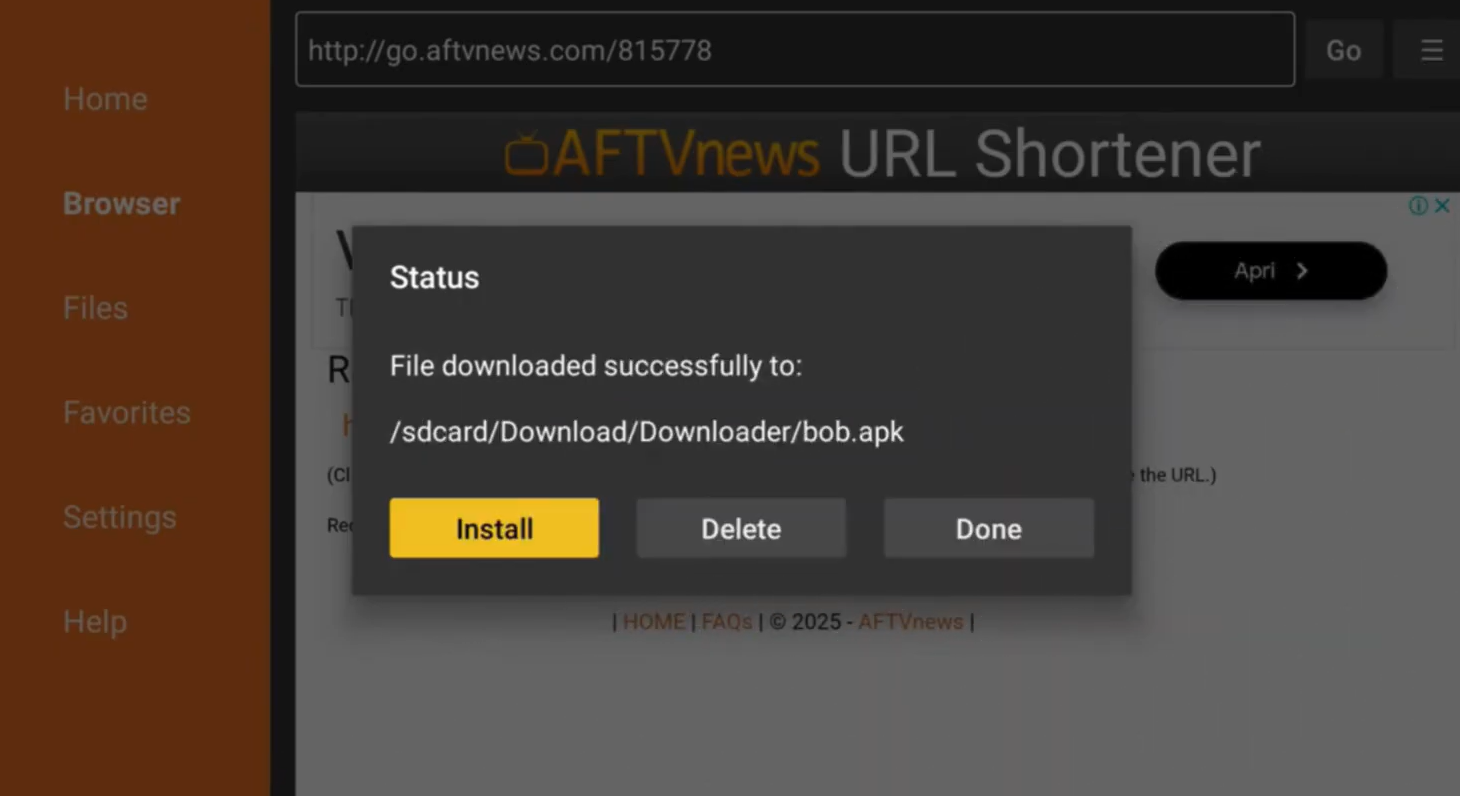
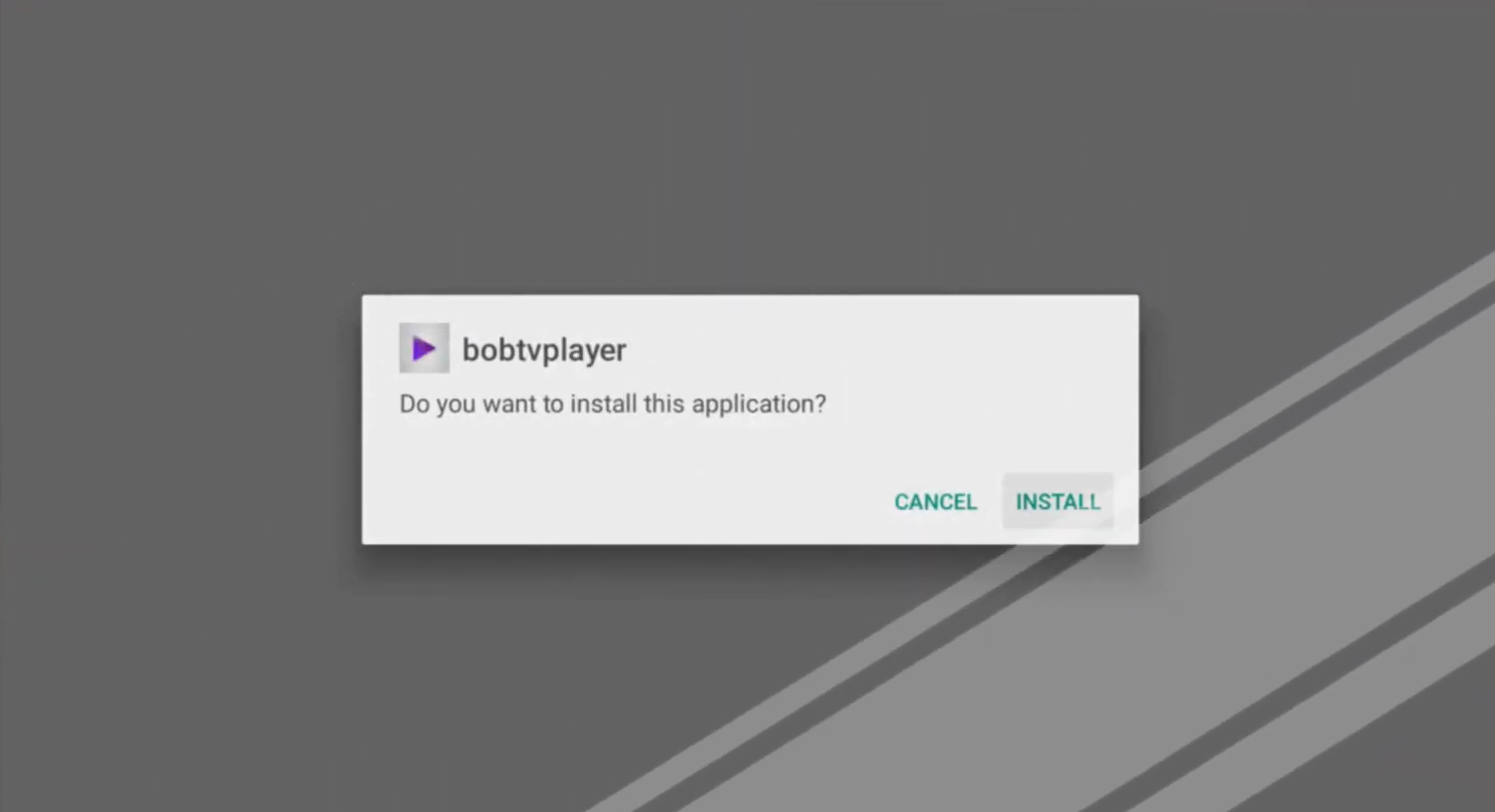
Once the APK has finished downloading, the Downloader app will automatically prompt you to install it.

  1. When the download completes, tap Install on the prompt that appears.
  2. Wait for the installation to finish. This usually takes 10–20 seconds.
  3. Once installed, tap Open to launch Bob Player, or tap Done to return to Downloader.
  4. You can also delete the APK file from Downloader to free up storage space.
how to install bob player on fire tv stick - enable unknown sources setting

Step 5 – Open Bob Player and Add Your Playlist

Bob Player is now installed on your Fire TV Stick. The final step is to launch the app and connect it to your IPTV subscription.

  1. Open Bob Player from your apps list or home screen.
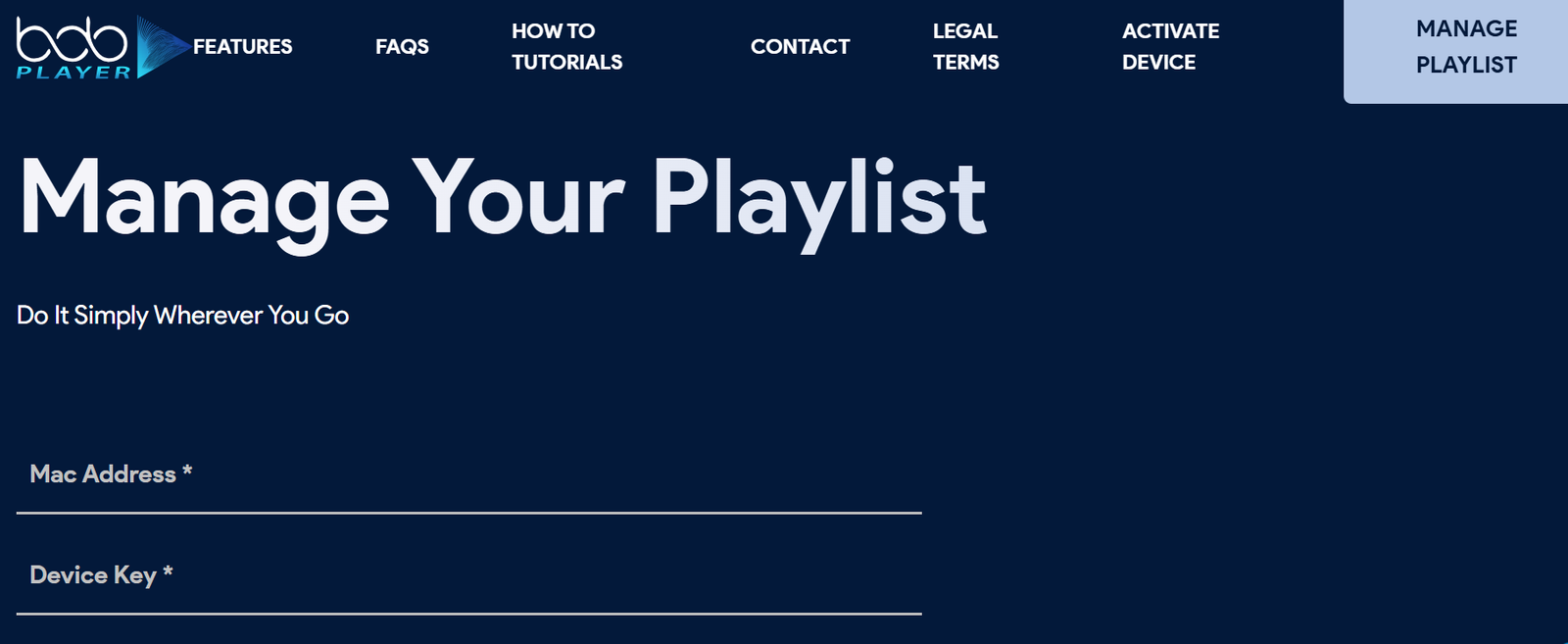
  2. Screenshot your MAC Address and Key shown on the app screen.
  3. Open the support chat and send this info to your IPTV provider so they can activate your playlist. Need a provider? Check the best IPTV providers for 2026.
  4. OR — open the website bobplayer.co.com, go to Add Playlist, and add your playlist directly.
  5. Tap Save and wait for the channels to load.
how to install bob player on fire tv stick - enable unknown sources setting

That's it. You have successfully completed the process of learning how to install Bob Player on Fire TV Stick. Your channels should now be loading and ready to watch.

For more IPTV player options and comparisons, check out the best IPTV players blog or explore Net IPTV as an alternative IPTV player.

Features of Bob Player

Bob Player stands out from the crowd because of its well-rounded feature set. Here is what you get when you install it on your Fire TV Stick:

  • ✔ M3U and Xtream Codes playlist support
  • ✔ Built-in Electronic Program Guide (EPG)
  • ✔ Catch-up TV and time-shift playback
  • ✔ Separate sections for Live TV, Movies, and Series
  • ✔ Favorites and recently watched lists
  • ✔ Multiple audio track and subtitle support
  • ✔ Parental controls with PIN protection
  • ✔ External player support (MX Player, VLC)
  • ✔ Multiple playlist management
  • ✔ Smooth remote-control navigation optimized for TV
  • ✔ Auto-reconnect on stream interruption
  • ✔ Regular updates and active developer support

If you want to compare Bob Player with other options, take a look at Tivimat or IPTV Smarters Pro as popular alternative IPTV players in the same category.

Compatible Devices

One of the biggest advantages of Bob Player is its wide device compatibility. You are not limited to just the Fire TV Stick — the app runs on a broad range of platforms.

Device Type Compatibility Notes
Amazon Fire TV Stick✔ Full SupportAll generations including 4K and Lite
Android TV / Google TV✔ Full SupportInstall via APK sideload or direct store
Smart TVs (Android-based)✔ Full SupportSamsung, LG (Android), Sony, TCL
Android Tablets & Phones✔ Full SupportAndroid 5.0 and above
Nvidia Shield✔ Full SupportExcellent performance on Shield Pro
MAG BoxesPartialCheck official site for latest compatibility

No matter what device you are using, Bob Player delivers a consistent and reliable streaming experience. Visit bobplayer.co.com for the latest compatibility information and download links.

Frequently Asked Questions (FAQ)

Is Bob Player available on Firestick?

Yes. Bob Player is fully compatible with Amazon Fire TV Stick. Since it is not listed in the Amazon Appstore, you need to sideload it using the Downloader app. The process is straightforward and takes less than five minutes — just follow the steps outlined in this guide on how to install Bob Player on Fire TV Stick.

Is Bob Player free?

Bob Player offers a free 24-hour trial that lets you test all features before purchasing a subscription. After the trial, a paid plan is required to continue using the app. You can activate your free trial at bobplayer.co.com/free-trial-24h.

Can Bob Player play M3U playlists?

Absolutely. Bob Player natively supports M3U URL playlists. Simply paste your M3U link into the Add Playlist section and the app will automatically organize your channels into Live TV, Movies, and Series categories. It also supports EPG URLs for program guide data.

Is Bob Player safe to use?

Bob Player is a legitimate IPTV player application. It does not host or provide any content itself — it simply plays streams from your IPTV subscription. As long as you download the APK from the official website at bobplayer.co.com, the app is safe to install and use.

What IPTV service works best with Bob Player?

Bob Player works with any IPTV service that provides M3U links or Xtream Codes credentials. For recommendations on compatible IPTV services and player comparisons, visit the best IPTV players blog. You can also explore other IPTV apps to find the combination that works best for your needs.

Conclusion

Now you know exactly how to install Bob Player on Fire TV Stick from start to finish. The process involves enabling unknown sources, installing the Downloader app, fetching the Bob Player APK, and connecting your IPTV playlist — all of which can be done in under ten minutes even if you have never sideloaded an app before.

Bob Player is one of the most capable IPTV players available for Firestick in 2026. Its support for M3U playlists, Xtream Codes, EPG, catch-up TV, and parental controls makes it a complete solution for any IPTV user. Whether you are switching from other IPTV players or setting up IPTV for the first time, Bob Player is a solid choice that delivers on its promises.

Ready to give it a try? Start with the free 24-hour trial and see for yourself why so many streamers are making the switch to Bob Player.